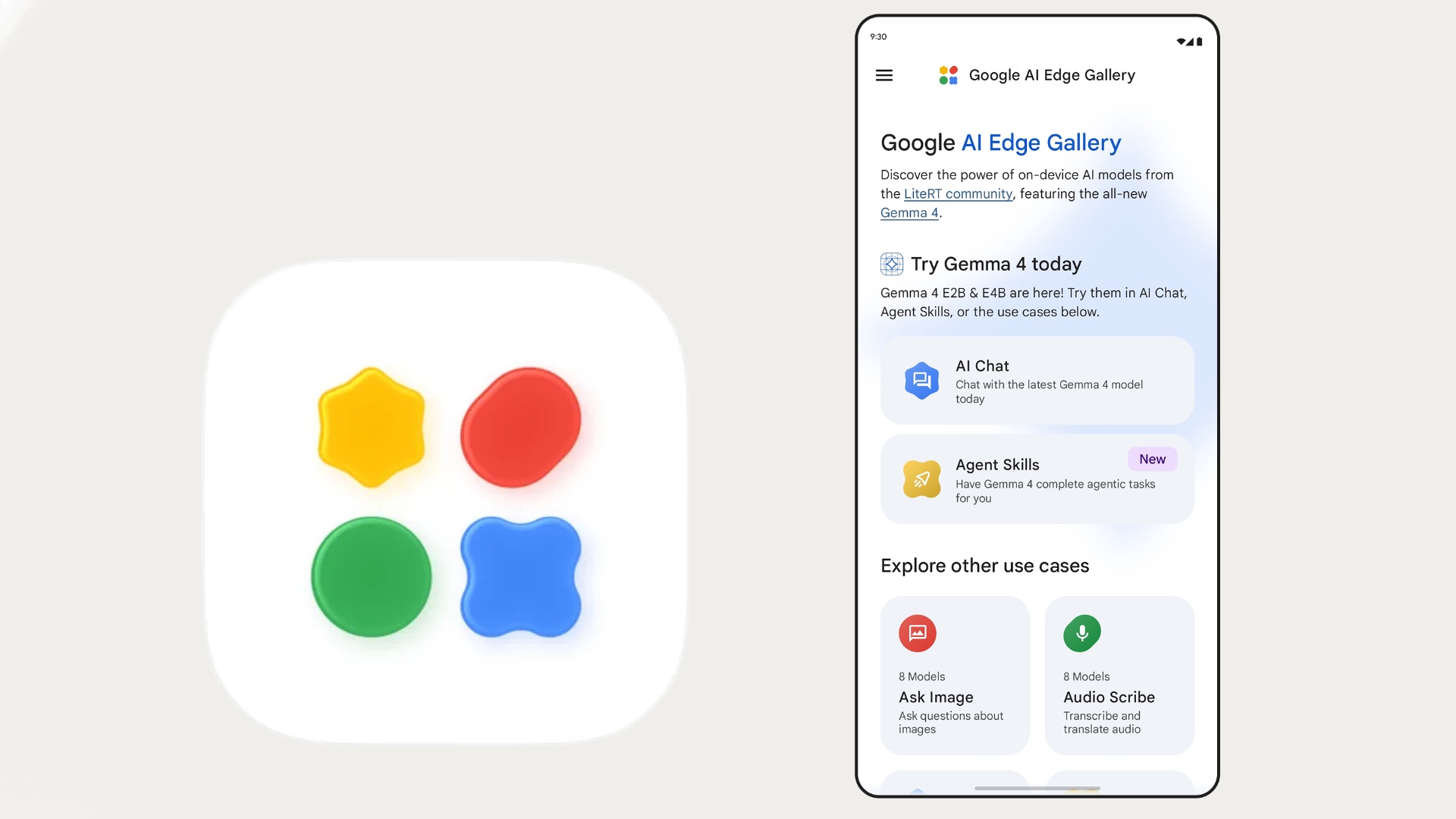
The AI world is undergoing a major shift from full cloud dependency to direct on-device processing. In light of this rapid evolution, Google has launched a revolutionary new app called Google AI Edge Gallery (officially available for Android and iPhone). This innovative app allows everyday users and developers alike to experience and run AI models entirely locally on their smartphones without any internet connection or expensive monthly subscriptions, while ensuring complete privacy and full security for personal data. In this detailed practical guide, we will take a close look at Google AI Edge Gallery, explore its features, and explain step-by-step how to download and run a local AI model on your phone and enjoy its capabilities wherever you are.
Why Should You Care About Running AI Locally?
Before diving into the practical guide, let's highlight the great benefits of running AI locally (Offline AI) compared to relying on cloud services like ChatGPT or Claude:
- Complete Privacy and Security: When using a local model, all data, conversations, and text you write are processed inside your phone's processor only. No information is sent to external servers, fully protecting your privacy.
- Works Without Internet Connection: Whether you are on a long flight, in a remote area with no coverage, or want to save mobile data, the AI assistant will work with you efficiently at any time.
- Cost Savings: Advanced cloud services typically cost around $20 per month or more, while running local models on your device is completely free for life after downloading the model just once.
What is Google AI Edge Gallery?
It is an interactive platform and comprehensive model library developed by Google to enable mobile devices and computers to run generative AI models with high efficiency. The app includes a distinguished collection of open-source models supported by the Google AI Edge SDK. The app offers users several key professional tools and functions:
- AI Chat: Chat with language models (LLMs), generate articles and ideas, and answer complex questions entirely offline.
- Ask Image: Upload images from your phone gallery and ask the computer vision model to analyze and explain their elements accurately.
- Audio Scribe: An amazing feature for converting live speech into written text with ultra-high accuracy instantly, without needing to connect to cloud speech recognition servers.
- Prompt Lab: Automate the rewriting and composition of texts and emails in different professional styles.
Steps to Run a Local AI Model on Your Phone (Offline)
To successfully launch and run the AI assistant on your phone, follow this simplified practical guide:
Step 1: Download and Install the App
Go to the official app store compatible with your phone's operating system:
- For Android users: Open the Google Play Store and search for Google AI Edge Gallery, then install it.
- For iPhone (iOS) users: Open the Apple App Store and download the official app developed by Google.
The app is completely free and does not require account registration or payment details.
Step 2: Explore the App Interface and Choose a Language Model

When you open the app for the first time, the home screen displays the available tools (Chat, Vision, Audio). To start an offline text conversation, you must first go to the Model Library section to choose the appropriate model.
Step 3: Download the Language Model (Using Wi-Fi)
You will find a list of available models for download. It is recommended to choose a lightweight model compatible with your phone's memory and processor, such as Gemma 2 2B or Gemma 3N, which are specifically designed to run on phones and devices with limited resources.
- Press the Download button next to your chosen model.
- Important tip: Make sure to use a stable Wi-Fi connection because these models typically range from 1.5 GB to 4 GB in size.
Step 4: Configure Hardware Acceleration Settings (CPU vs GPU)
After the download completes successfully, go to the model settings menu within the app:
- The app allows you to choose the processor responsible for running the AI: either the CPU or the GPU.
- It is always recommended to choose GPU or the dedicated Neural Processing Unit (NPU) for ultra-fast text generation speed and real-time responsiveness, as Google's technologies leverage modern processor capabilities to ensure the best possible performance.
Step 5: Start Using AI Completely Offline!
Now, enable Airplane Mode on your phone or turn off Wi-Fi and cellular data completely. Open the AI Chat section and type any question, ask to write an email, or translate text. You will immediately notice the model answering you and generating text at lightning speed without needing any internet connection, with 100% complete privacy.
Conclusion
Google AI Edge Gallery represents a giant step toward making AI a personal, secure, and accessible tool for everyone, anytime, anywhere. The ability to run powerful language models locally on our phones opens new horizons for innovation and digital privacy protection. We recommend downloading the app and trying it today to experience the power of future AI without needing an internet connection.
Comments
Post a Comment